|
|
Portfolio Editor Tutorial(See Also: YouTube Video or Flash presentation versions of this tutorial) This tutorial uses the Portfolio Editor to demonstrate setting up new sub-portfolios containing the investments of existing portfolio files (*.mm4). This is intended to help convert multiple old portfolios, where no sub-portfolio hierarchy existed, into a single portfolio containing a sub-portfolio for each old portfolio. Let's assume you have these 3 old portfolios:
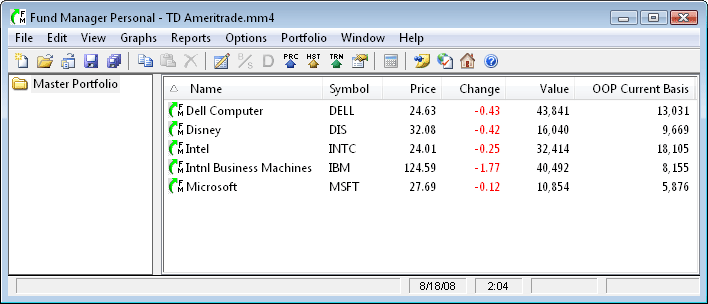
and you want to create a single new portfolio with sub-portfolios for each of these. Let's start off by opening up the existing TD Ameritrade.mm4 portfolio and displaying the Portfolio Editor. Use "File / Open Portfolio..." to open the TD Ameritrade.mm4 portfolio, and then use "View / Portfolio Editor" to display the Portfolio Editor. Your window would look like this:
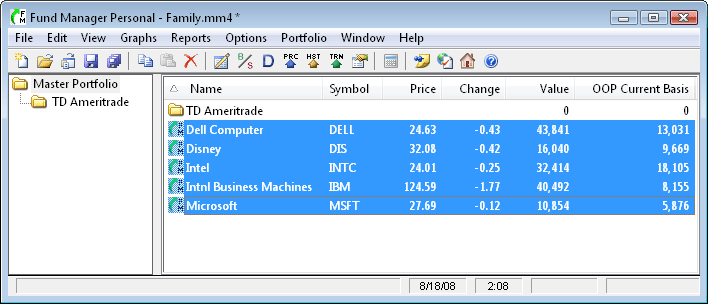
To create our new portfolio file use the "File / Save Portfolio As..." command and assign a new filename to our new portfolio. For this tutorial we have saved the new portfolio as "Family.mm4". Next, let's create a sub-portfolio for the currently opened TD Ameritrade investments. Right mouse click on the "Master Portfolio" on the left side of the Portfolio Editor, and choose "New Sub-Portfolio..." from the popup menu. Assign the new sub-portfolio a name of "TD Ameritrade" and click OK to the Portfolio Properties dialog. You should see a new sub-portfolio underneath the "Master Portfolio" called "TD Ameritrade". Let's move all of the open investment files into this new TD Ameritrade sub-portfolio. Select all the investments currently in your Master Portfolio. You can do this by left mouse clicking on the top investment in the list on the right, holding down the Shift key, and left mouse clicking on the bottom investment. Your window should look like this:
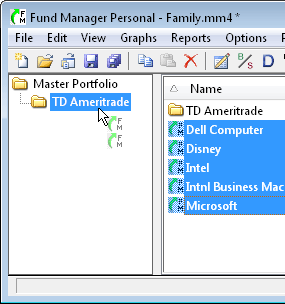
To perform the move, left mouse click on the investments and hold down the left mouse button while moving the mouse over onto the "TD Ameritrade" sub-portfolio. When your cursor is over the TD Ameritrade portfolio your cursor will appear as shown here:
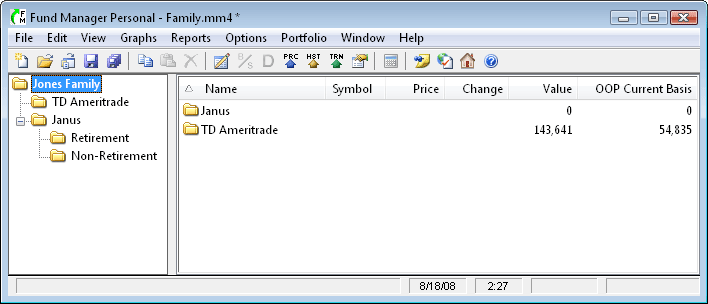
Let go of the left mouse button, and all the selected investments will be moved into the TD Ameritrade sub-portfolio. (On a related note, if you hold down the Ctrl key while dragging the investments you will "copy" the investments instead of moving them. In this case you will see a little plus sign next to the cursor as you perform the drag. This "copy" is just another instance of the same investment file. It does not create a copy of the investment file(s) (*.dat) on your hard drive.) We have now completed transferring the first old portfolio into a sub-portfolio of a new portfolio file. Next, let's create the other new sub-portfolios we want. For this example, we will create 2 levels of hierarchy for the Janus portfolios. The first level will be for a portfolio called "Janus", and then beneath this sub-portfolio we will have 2 sub-portfolios called "Retirement" and "Non-Retirement". We will also rename "Master Portfolio" to "Jones Family". To do this, right mouse click on "Master Portfolio" and choose "Properties..." from the popup menu. Change the Portfolio Name from "Master Portfolio" to "Jones Family" and hit OK. Create the "Janus" sub-portfolio first by right mouse clicking on "Jones Family" and choosing "New Sub-Portfolio..." from the popup menu. Assign the name as "Janus" and hit OK. Right mouse click on "Janus" and choose "New Sub-Portfolio..." and assign a name of "Retirement". Again, right mouse click on "Janus" and choose "New Sub-Portfolio..." and assign a name of "Non-Retirement". Your Portfolio Editor should now look like this:
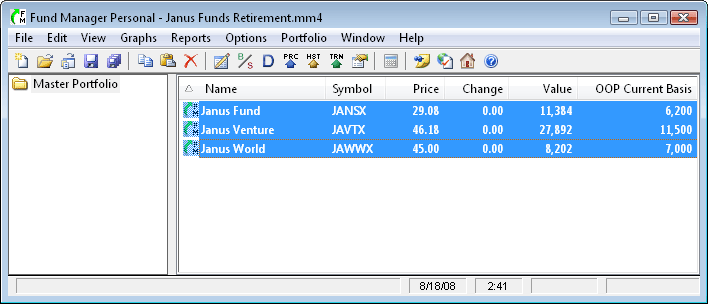
Let's save our work by choosing "File / Save Portfolio". Now, let's add the investments from the Janus Funds Retirement.mm4 portfolio into the appropriate new sub-portfolio we just created. To do this, we will copy from the old portfolio and paste into the new sub-portfolio. Use "File / Open Portfolio..." to open the Janus Funds Retirement.mm4 portfolio, and then use "View / Portfolio Editor" to display the Portfolio Editor. If your portfolio contains hidden investments that you want to transfer turn on "View / Hidden Investments" so they are visible in the Portfolio Editor. Select all the investments open in this portfolio using the same technique as before. On the right hand side of the Portfolio Editor, left mouse click on the top investment, hold down the Shift key, and left mouse click on the bottom investment. All your investments should be selected. Choose the menu command "Edit / Copy" to copy the selected investments to the clipboard. Your window should look like this:
Use "File / Open Portfolio..." to open the Family.mm4 portfolio. In the Portfolio Editor select the "Retirement" sub-portfolio we created earlier. Use the menu command "Edit / Paste". This will add the just copied investments into this selected sub-portfolio. Your window should look like this:
Save your portfolio using "File / Save Portfolio". Repeat this same procedure for the Janus Funds Non-Retirement.mm4 portfolio. Open that portfolio, select all the investments in the Portfolio Editor, copy them to the clipboard, re-open the Family.mm4 portfolio, select the Janus Non-Retirement sub-portfolio, and paste the investments into that sub-portfolio. That's it, you've transferred all your investments from the 3 old portfolios into 1 new portfolio with sub-portfolios. If you've ever used Windows Explorer before you will notice that the Portfolio Editor works in much the same way. We used copy/paste to transfer investments across portfolio files. You can also use copy/paste to transfer entire sub-portfolio hierarchies as well. This tutorial also demonstrated how to create several sub-portfolios. You can create as many sub-portfolios as you'd like, and they can have unlimited hierarchy. Your portfolio file (*.mm4) saves all your sub-portfolios along with which investments are contained in each sub-portfolio. For additional reading consult the online documentation. In particular, browse the contents to:
See Also: |

| FundManagerSoftware.com | Search | Site Map | About Us | Privacy Policy |
| Copyright ©1993-2026 Beiley Software, Inc. All rights reserved. |