|
|
Data Register TutorialThe Data Register is where you can enter or modify pricing
and transaction data for all your investments. The
Data Register is available by choosing Edit / All Data...
from the menu or selecting the
You can work with any investment by choosing the desired Sub-Portfolio and Investment from the boxes along the top. Under the "Data Type" combo box there are data types to control which data is being viewed in the list:
Notice some data types are indented. These indented data types are a subset of the higher level data types. For example, Purchases is a subset of Share Transactions which is itself a subset of All Transactions. The selected data type specifies what data is being displayed. Select the data type you wish to work with. For example, to record a new purchase, select either All Transactions, Share Transactions, or Purchases and then press the "New >>" button to record a new transaction. To modify an existing transaction, select it from the displayed data, and choose the "Edit..." or "Delete" button. You can select multiple transactions/prices by using the Shift and Ctrl keys. Transactions and prices can also be copied and pasted by using the right mouse menu or the "More >>" button. Notice the This dialog can be resized and various colors/fonts and other display preferences can be adjusted under Options / General Preferences... / Data Register Display. See Also: |
 button on the toolbar. You can also access the Data
Register or record any transaction for an investment by
right mouse clicking on that investment, and choosing
the appropriate menu command. The Data Register
looks like this:
button on the toolbar. You can also access the Data
Register or record any transaction for an investment by
right mouse clicking on that investment, and choosing
the appropriate menu command. The Data Register
looks like this: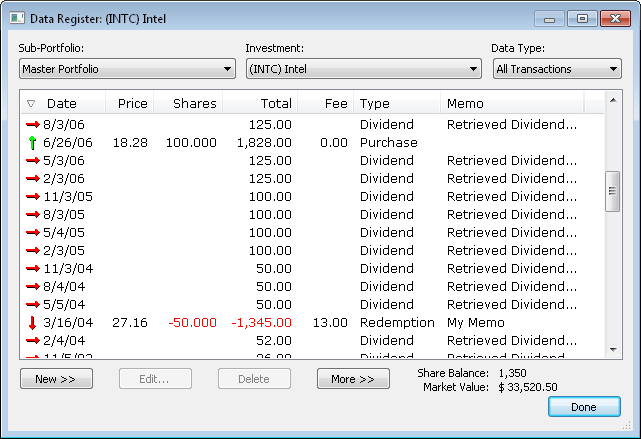

 icon in the "Date"
column header. This arrow indicates the
sort order of the data list. You can
control this by clicking on any column's
header to sort by that column. Clicking
on the same column header again, switches
the sort order between ascending and
descending. When sorting by ascending,
the arrow icon will be facing up, instead
of down. You can also adjust the width of
any of these columns by clicking and
dragging on the edge of any of the column
headers. You can also adjust the order of
these columns, by using your mouse to
drag any column header to a new desired
location. Column sizes and order are
memorized for future Fund Manager sessions. The
initial selection for data type can be customized in the
icon in the "Date"
column header. This arrow indicates the
sort order of the data list. You can
control this by clicking on any column's
header to sort by that column. Clicking
on the same column header again, switches
the sort order between ascending and
descending. When sorting by ascending,
the arrow icon will be facing up, instead
of down. You can also adjust the width of
any of these columns by clicking and
dragging on the edge of any of the column
headers. You can also adjust the order of
these columns, by using your mouse to
drag any column header to a new desired
location. Column sizes and order are
memorized for future Fund Manager sessions. The
initial selection for data type can be customized in the
| FundManagerSoftware.com | Search | Site Map | About Us | Privacy Policy |
| Copyright ©1993-2024 Beiley Software, Inc. All rights reserved. |